OFA NT8 Support FAQ
Please consider reviewing the following items before submitting support tickets which can save all parties time and enable you to resolve some of the common issues more efficiently.
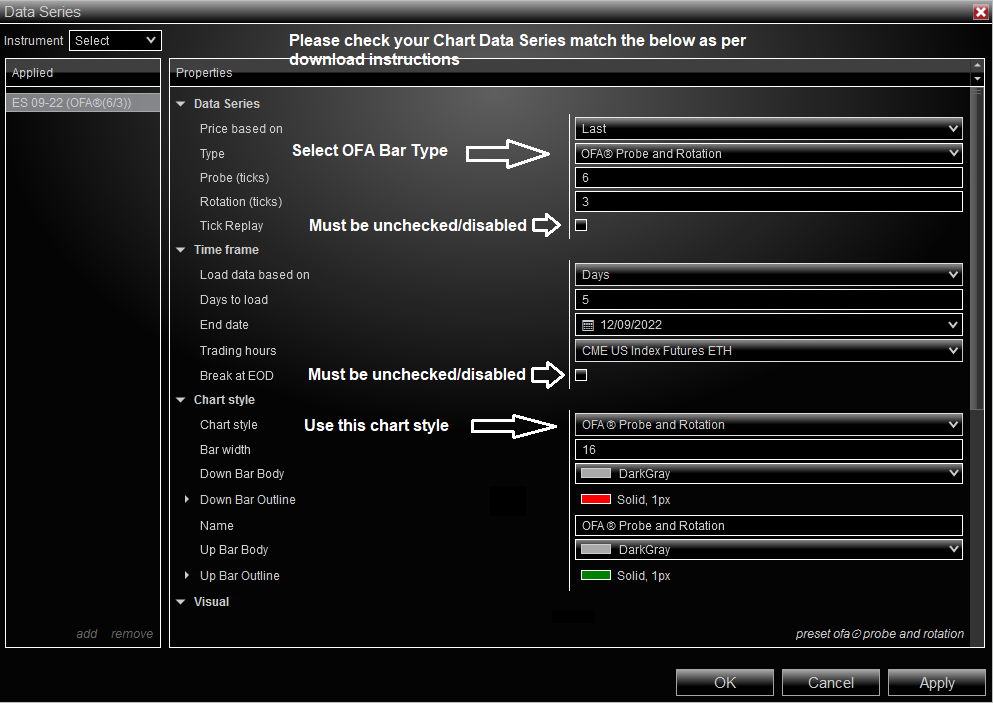
In addition to checking carefully the above settings – if authorising an OFA first time please also ensure that the ‘Load template’ at the top right of the initial Data Series setup is set to <None> ie please Do not use any Default template you have as it will affect the initial build process of the OFA chart.
Installation Process:
I get a popup message saying “This NinjaTrader archive was made from an older, incompatible version of NinjaTrader”.
Solution:
As a reminder this is an Installer process and not an import process – rerun the installer that came with the downloaded ZIP file. Do not try to import the Zip file into NinjaTrader.
OFA Charts & Volume Profiles:
When I draw a volume profile on my OFA chart the Profile is not showing.
Solution:
We suggest closing all workspaces and closing down ninjatrader and delete the OFASetting.dat file in the Documents/Ninjatrader 8/bin/custom directory as indicated in the below link.
Then restart Ninjatrader open one new OFA chart adding OFA indicator as in the below and then authenticate with credentials
https://orderflowanalytics.com/my-account/install/nt8-install
Why do I get the message lifetime license needed when adding indicator?
Solution:
You are trying to add a ninjatrader orderflow indicator, this is a ninjatrader warning message – these are not related in anyway to OFA. All OFA indicators begin with OFA in the Name.
My Volume Profile is not showing & my local language on my machine is Spanish or Portuguese.
Solution:
Please check windows regional settings for decimals are set to decimals and not commas.
Authentication Process & Adding New OFA Chart & problem with missing OFA Bar types & OFA Indicator:
My authentication is not working.
Solutions:
Please double check your credentials which are your email and password to access your account on the OFA website. Check that you are using the correct email associated with your purchases and not any secondary email you may have used in the past
Also please check the case of the password is correct
Check your clock settings for your time zone are correct and that they are not adjusted as this will affect the authentication process
I have multiple pop ups showing for my credentials.
First try closing all workspaces and then closing down Ninjatrader
and then go through the process to add a new chart and the OFA indicator, then authenticate.
If the above doesn’t resolve it or you are unable to close all workspaces
Close down Ninjatrader
Go the directory in Documents / Ninjatrader 8 / workspaces
On the right hand side of the windows file explorer you are in you should see the file _Workspaces
right click on this file and select ‘rename‘ and add today’s date at the end ie _WorkspacesDDMM
Now go into the Documents / Ninjatrader 8 / bin / Custom folder and again on the right hand side you will see the files.
Locate OFASettings.dat and delete this file by right clicking on this and selecting the delete option
Now please restart Ninjatrader
https://orderflowanalytics.com/my-account/install/nt8-install
and follow steps 6 to 9 and authenticate a new chart
If you want you can now select any prior workspace you were using once this is done
you can rename the _Workspacesxxx file after you close down Ninjatrader if you wish to use again
I have tried to install OFA and i do not see the OFA indicator or the OFA bar types
Important : Please check through the following steps carefully. Sometimes users inadvertently create a situation where they have tried
multiple Ninja installations and this can be based on other 3rd part tools (ie not OFA). So in these instances if they have tried to rollback
to a prior Ninja version or lost track of their process ; the following process will help restore OFA to a healthy state in your Ninja environment.
Please DO NOT Rush this process and if you are not comfortable with the process you can check with Ninja Support for guidance.
Close ALL workspaces including hidden ones.
Close down Ninjatrader
Uninstall OFA
have the version of Ninjatrader ready you need..
have the version of Ninjatrader and OFA – correct pairing you want as per the download page instructions
Start Ninjatrader
Go into the Ninja Control Center, under Tools Remove NinjaScript Assembly… and remove OFA.tradingTools, (note these next 2 ONLY apply to versions of OFA pre 1.17.0.1) SQLite.Interop, and System.Data.SQLite
Close Ninjatrader
have the version of Ninjatrader and OFA – correct pairing you want as per download
install OFA
The above is rarely needed, very occasionally with some users depending on what they have done with their ninja installations
Sometimes going back a version of ninja can trigger issues. Make sure you do a clean uninstall before doing so and check with ninja platform support if unclear on the steps involved.
OFA Book / OFA Delta:
Why are the OFA Book candles very wide or thicker than the OFA Auction Bars.
Solution:
Check and ensure the Chart Style for the Data Series is set to OFA Probe and Rotation.
This should resolve the issue.
OFA Core:
Why can I not see the Labels on the Settings Chart or Volume Profile or AlgoX panel.
Solution:
If you have selected a different eg Light Skin from Ninja control centre options you will need to modify the Label Settings in the OFA Parameters in the Settings Group near the bottom of all the parameters. These settings are where you can enable the refresh to optimise the chart render and also drawing Right to Left as covered in prior release notes.
See below.
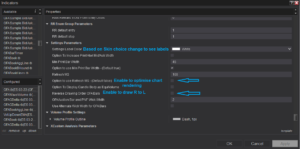
This should resolve the issue.
OFA AlgoX:
I am not seeing the chart trader lines overlaid on my chart.
Solution:
Select the Chart trader Icon on the top menu and select
Chart trader (hidden mode) and ensure the account for chart trader matches that in the Algox Account dropdown
Where are my take profit lines?
Why is my final target profit line not showing?
Solution:
Check if your last take profit for your chosen take profit algo is < 100% – remember OFA rounds down # of contracts. There may not be enough contracts in the sizing calculation to match all your take profit steps ; please check this over.
If you want take profit lines to appear for all contracts then please ensure that the last take profit step in your algo is set to 100%
I cannot see the AlgoX panel it is transparent and only see my background screen
Solution:
Select Tools -> Options -> general from the Ninja Control Centre.
Select one of the available Skins created for OFA to address this issue with the AlgoX panel.
You can choose from : DarkOFA & Slate DarkOFA
You will need to restart NT8 in order for the change in skin to take effect
OFA CORE General:
What is Toxic Orderflow and how does it relate to the Bid/Offer Alerts and Sequence numbers and the dots i see on my OFA charts.
First of all please read the NT8 tutorials page in the training library. Go to lesson 3 ‘OFA Print Mode and Settings’ then read through lesson 4 ‘Toxic OrderFlow Settings’.
Here is some additional information and context with an example :
The order flow alerts in OFA show the print volume as a color when the order flow is toxic. This means that the market depth has changed drastically removing microstructure. So as an example… there might be 350 contracts in the market depth being offered. This would require 351 contracts being bought at market to clear the depth of that price. However, often we see the depth cleared with only a few contracts being bought – and then the price jumps up. This means the 350 contracts were pulled out of the offer – removing the resistance of that price. In this event you would see the volume in the OFA view change color. When there are several of these in a row (a sequence), you would also see a sequence alert (a dot) on the chart.
A toxic order flow sequence is a series of levels where the market blew through support or resistance created by market depth.
So this is based on our internal algorithms – you can read more background papers on toxic orderflow but some can get quite complex.
Here is another example :
Alerts are designed to identify toxic order flow conditions in the best bid and offer. As a very basic example, imagine there are 200 contract being offered at price 100. This means someone would need to buy 201 contracts to move the price higher. In reality there is not 1 person selling and 1 buying, so the numbers change. Someone might buy 10 of the 200, others might buy some also. Still more people might join the offer to sell more. Therefore, the offer size becomes “microstructure”, providing resistance for the price until the orders are matched. There is also microstructure support from the bids below. HFT algos are designed to “play” with this microstructure by adding to the market depth or feeding off it. When orders are removed from the depth – suddenly the structure breaks down. If there are 200 being offered and then suddenly only 5 are being offered – and 195 were not bought – you have a toxic order flow (again simplified). The resistance is gone and a small order can move the market. This is what the alerts are for. We are monitoring the times when the order flow has become toxic and therefore might fail to provide the microstructure that normalizes market movement. In short, an alert means the market has an easy path to move up or down quickly.
With that said we must emphasise that the Sequence dots should not be used in isolation as trade signals/triggers – but in context.
OFA Settings Request From Videos:
What are the Settings you used in the recent Block / Book / Absorption Launch Videos. This is for the OFA Bar settings (stored in local database ; not in OFA parameters) and some of the Key Add-On Settings ?
Enclosed below are the OFA Chart Settings used – note as these are stored in my local DBase separate to the OFA parameter settings hence why cannot give template for these specifically.
The background color i use is gray – right click chart and go to properties.
Note sometimes i use POC Color Logic as well as Value Area Logic – and also enable the Value area Colors.
In the volume profile menu, the opacity submenu for POC/Cluster etc I have POC and cluster set at 60 ; the body fill at 50 and the value (when i use) set to 60
For ES settings for some Block Speed / Book / Absorption tools :
The absorptions settings – Min is 20, Dominant 90, Depth 4 and Absorption imbalance 90
POC SRA level set to 6 ticks
Book ratios : Rejection = 50 and Defence = 0.36 font 13 or 14 and 4 ticks above high low
Block font size 23 – and default for the mouse font – adjust print block font as you like depending on if use and the bar width you prefer. I use the default circle colors and White for both bid and ask block text.
Opacity of the bid ask circles i use around 18-20
Level 3 threshold for Speed i increased to 6 and Level 2 increased to 3.4
But I suggest to adjust and gain experience on this. I am looking going forward of a session multiple possibly – still to be determined.
For the RT session – and in video i did advise initially of showing only level 2 and 3 in first 30 mins of cash session to reduce number of Speed markers if is too cluttered / busy.
The blocks already have a time option in the OFA parameters to use a different minimum block filter for the cash RT session.
ES OFA Book i use 8 levels for both the cumulative OFA Book and the bid ask lines
The channel tool i used in one of the launch videos was the standard Ninja Trend Channel using 25 50 75 100 % levels which you can edit and also change colors and line style.
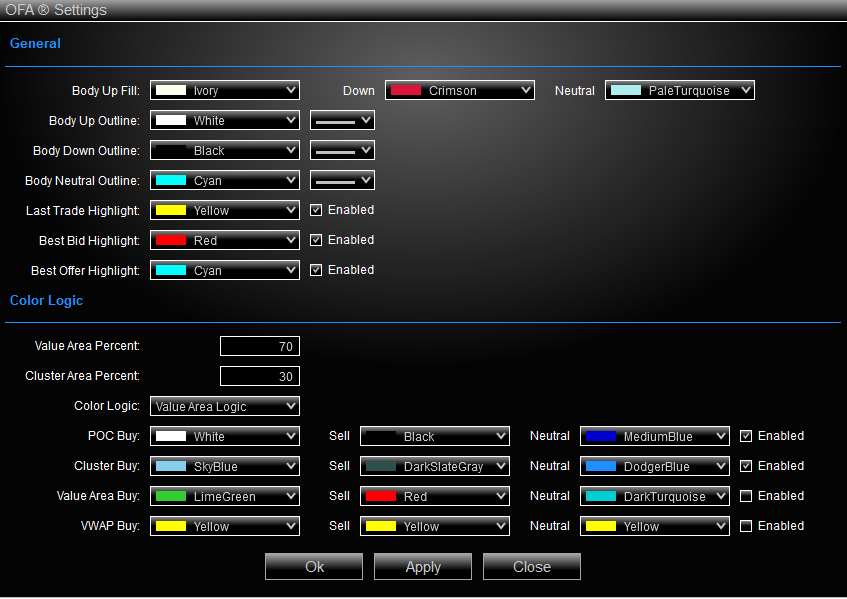
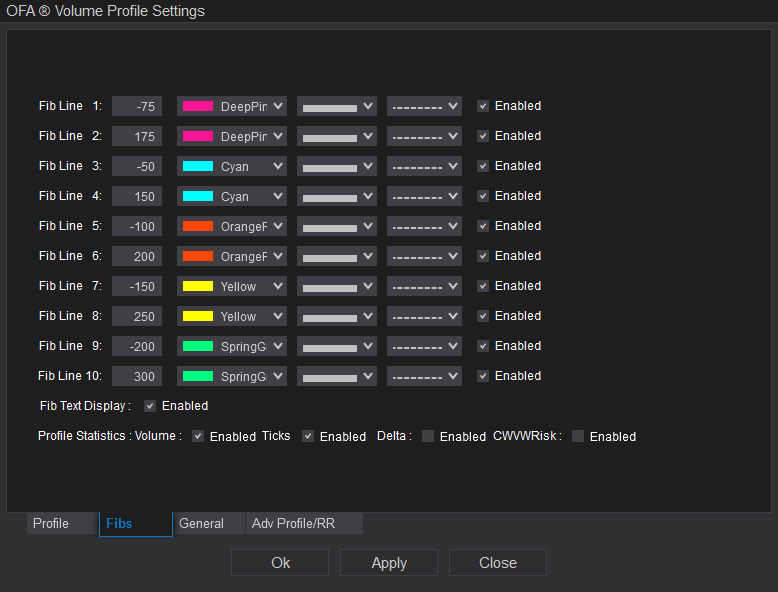
Some Default Screenshots for Volume Profile Settings : This one is the Ratio/Fib settings as outlined in videos for the Range Profile (RP). To access any Volume Profile Settings – add a profile from the horizontal access menu ie (RP) (DP) (SP) and then click the outline and right click for the context menu. For each change make sure select APPLY for changes to be saved.
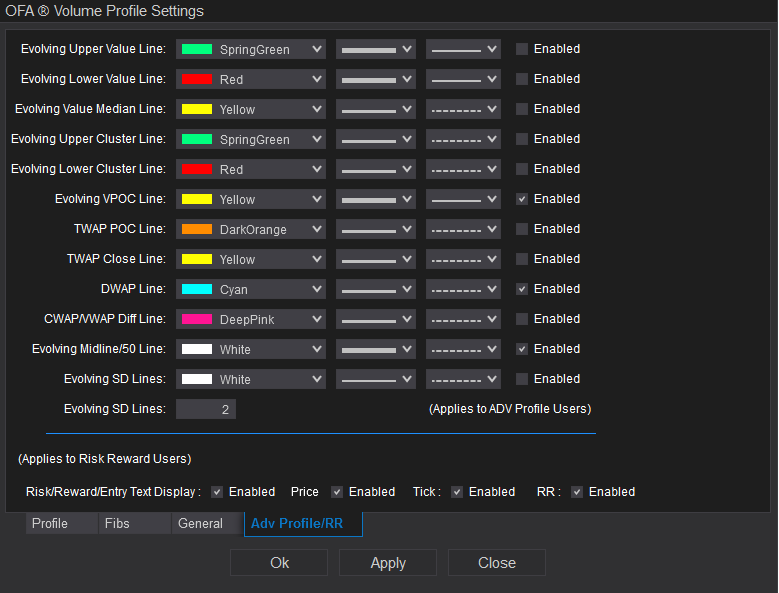
This next one is for Swing Profile (Advanced Profile) Settings :
The next one is the General tab for Decision Point Profile when using the Advanced Profile extension of the Value Area High/Low and POC:
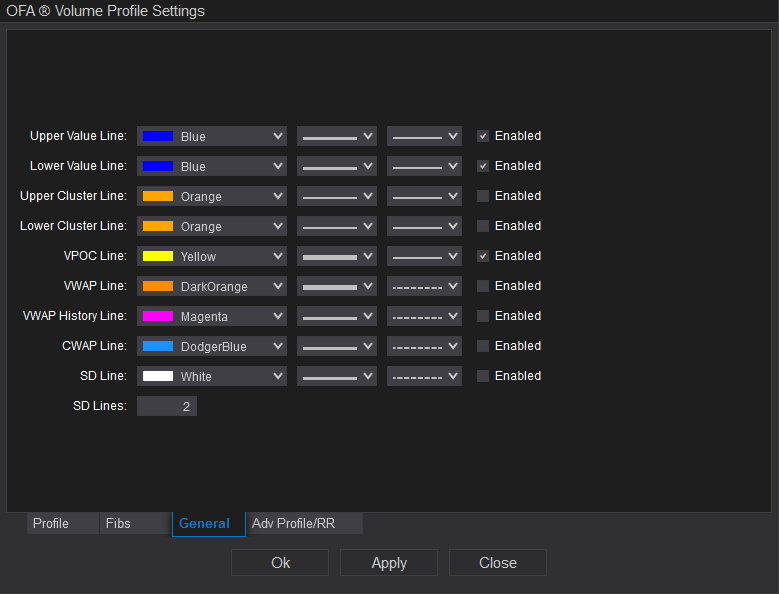
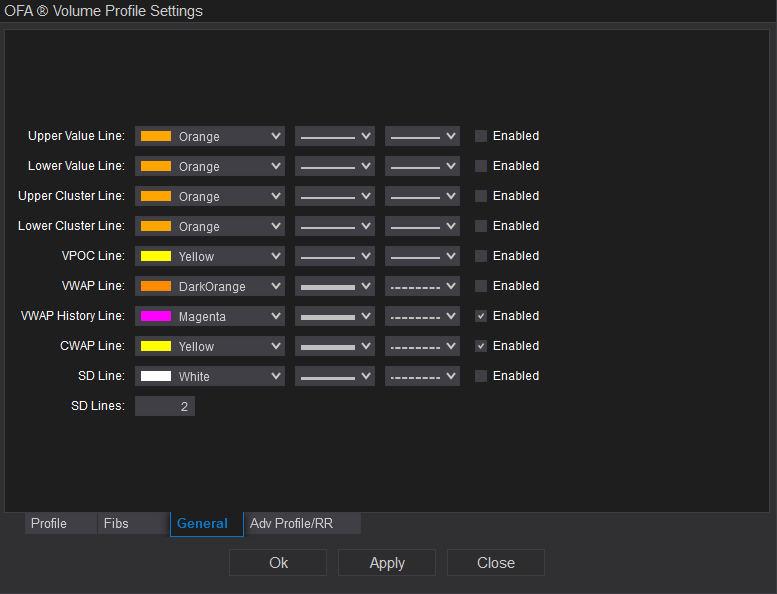
The next one is for the Swing Profile (SP) General Settings ie standard Cwap and Vwap History line :